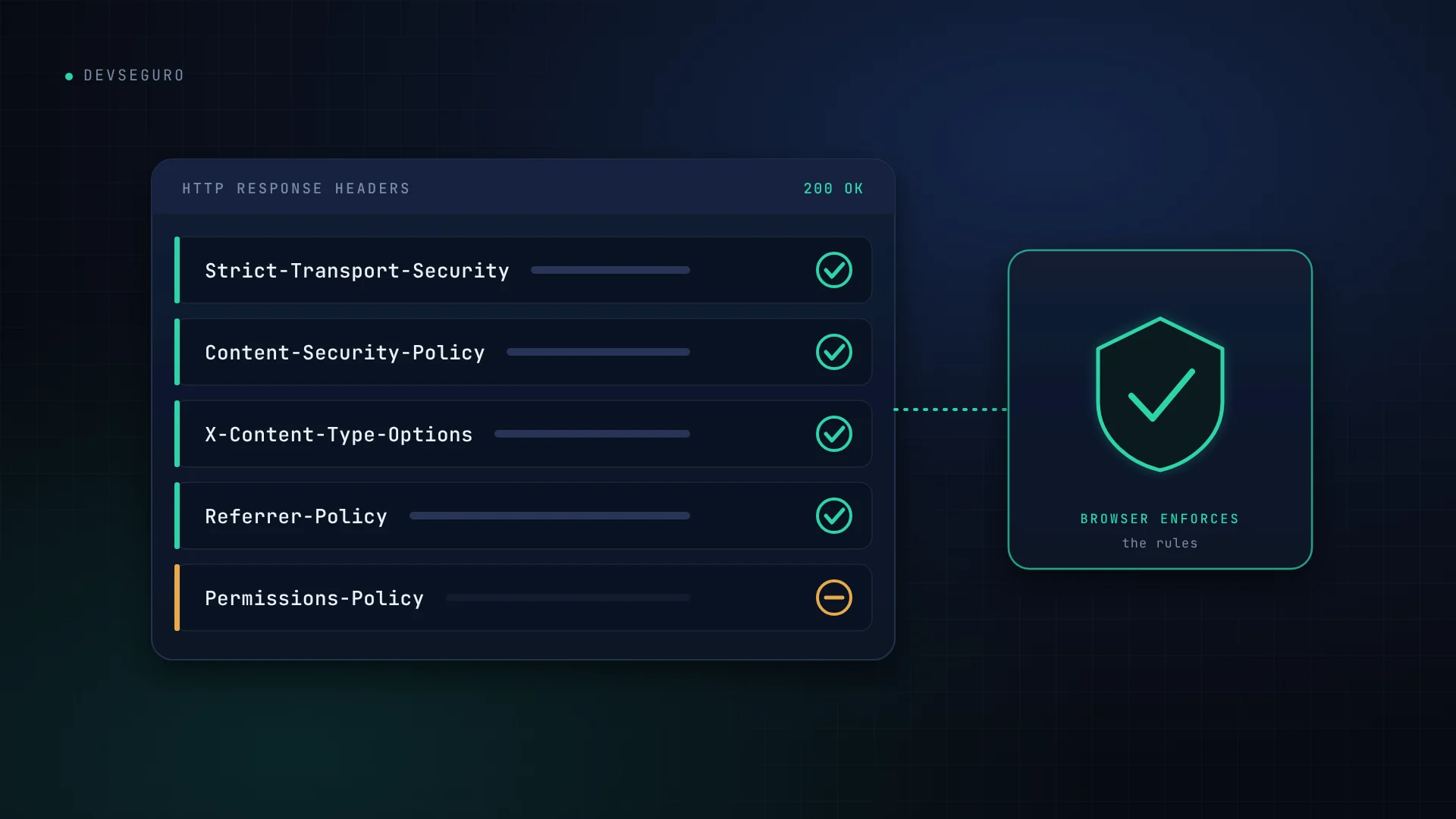
Every time a browser loads a page, your server sends back more than the page itself. It also sends headers: short instructions that tell the browser how to behave. Security headers switch on protections that browsers already know how to provide.
They are quick to add and cost nothing, but they are not a substitute for secure code. Here is what the main ones do, in plain language, and how to check your own site.
Six headers worth knowing
1. Strict-Transport-Security (HSTS)
Tells the browser to use HTTPS only for your site, for a period you choose. This stops visitors being quietly downgraded to an insecure connection.
Strict-Transport-Security: max-age=31536000; includeSubDomainsOnly enable it once HTTPS works everywhere, including your subdomains. A mistake can lock visitors out until the period expires.
2. Content-Security-Policy (CSP)
Lists where scripts, styles, images and other resources are allowed to load from. If an attacker manages to inject a script, a good policy can stop the browser running it.
Content-Security-Policy: default-src 'self'; img-src 'self' https:This is the most powerful header and the hardest to get right, because the policy has to list every service your site genuinely uses, such as analytics, fonts and payment scripts. Start in report-only mode so you can see what would break before enforcing it.
3. X-Content-Type-Options
With the value nosniff, browsers stop guessing a file’s type and trust the type your server declares. It is a one-line, low-risk win.
4. Clickjacking protection
Prevents another website from loading your pages inside a hidden frame and tricking visitors into clicking. Use the frame-ancestors directive in your CSP, or the older X-Frame-Options header, which is still widely supported.
5. Referrer-Policy
Controls how much of your page address is shared with other sites when a visitor clicks a link. strict-origin-when-cross-origin is a sensible default.
6. Permissions-Policy
Lets you switch off browser features your pages never need, such as the camera, microphone and location, so they cannot be misused if something goes wrong.
What headers do not do
Headers reduce the impact of certain attacks. They do not fix a broken login, missing access checks or vulnerable software. A site can have every header and still be weak, and a site missing one is not necessarily compromised.
That is the same lesson as in our article on what a security assessment actually finds: a tick in one place is not the same as “secure”.
How to check your own site
- In your browser: open developer tools, go to the Network tab, reload, click the first request and read the Response Headers.
- From the command line: run
curl -I https://yourdomain.comand read the headers that come back. - With an online checker: free tools such as securityheaders.com grade a site’s headers. See the MDN header reference for details on each one.
How to add them
Where you set headers depends on your hosting. Apache and LiteSpeed servers use an .htaccess file, Nginx uses its server configuration, and many hosts and CDNs offer a dashboard setting. As an example, these three low-risk headers can go in an .htaccess file on Apache-style hosting:
<IfModule mod_headers.c>
Header always set X-Content-Type-Options "nosniff"
Header always set Referrer-Policy "strict-origin-when-cross-origin"
Header always set Permissions-Policy "camera=(), microphone=(), geolocation=()"
</IfModule>
Back up the file first and test your site afterwards. Do not paste a Content-Security-Policy from the internet without testing it, because it can break your own pages.
A sensible rollout order
- Add
X-Content-Type-Options,Referrer-PolicyandPermissions-Policy. - Confirm HTTPS works across the whole site, then add HSTS.
- Add clickjacking protection.
- Introduce a Content-Security-Policy in report-only mode, fix what it reports, then enforce it.
Want to know what your site is missing?
Headers are one small part of how a website is configured. A security assessment looks at the whole picture. Learn about our security services or get in touch to review your site.